

RUMOR: Retailer Lists Name for Stuff Pack 8

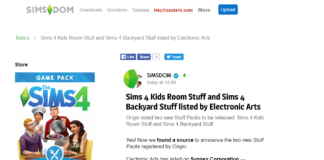
SimsDomination may have discovered the names of Stuff Pack 7 and Stuff Pack 8. According to Synnex Corporation, EA has reserved the names The Sims 4 Kids Room Stuff and The Sims 4 Backyard Stuff.

SimsdomWebsiteLeaks

As reported by the ESRB, this all but confirms our suspicions that the next stuff pack coming out later this month will be named The Sims 4 Kids Room Stuff. As for “Backyard Stuff”, we’ll just have to wait and see. Until we have official confirmation from a verifiable source, we’ll just chalk it up as rumors and speculation.

Advertisement
Advertisement

The Sims Team Calls for Get To Work Save Files

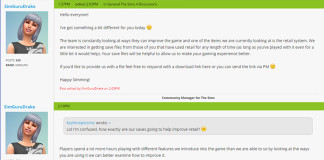
Simgurudrake over on the official forums has set up a new forum thread asking users with The Sims 4 Get to Work expansion pack to provide their save files that they have used the retail system with. Simgurudrake also explained the reason for doing this is because simmers have more time to play with features they implement than the Gurus do so longer played save files can provide insight to current bugs as well ways to improve already present features in the future.

SimgurudrakecombinedGTWSaveFiles

To provide your save files simply upload them to a file sharing service like Dropbox or Mediafire and then either comment or PM Simgurudrake on the forums the download link.

You can find your save files at the following location – Windows: Documents >> Electronic Arts >> The Sims 4 >> Saves.

Advertisement

On Mac you can do the following to access your save files: Open Finder >> Select Documents on the left, then >> Electronic Arts >> The Sims 4 >> Saves.

Advertisement

The Sims 4: How To Setup OBS For Recording Videos

Have you heard of the program OBS? This is one of many programs you can use to record videos of games like The Sims 4. In this guide we will be teaching you how to setup the program for the best quality video; continue reading to find out more.

NOTE: Use the links down below to change between sections.


OBS or Open Broadcaster Software is a Free, “open source software for live streaming and recording”. What makes this program great for recording videos is that it’s not very CPU intensive and with a little knowledge you can truly make your videos your own. From customizing what audio tracks are included to creating your own recording layout you can do it all with OBS!

Setup

OBS-Screen1

When first installing the program and launching it you will be greeted with this screen. As you can see there isn’t much here. This program lets YOU control what you want to record rather than telling you what you can record at one time. To get started let’s add a scene. Right clicking in the “Scene Area” will bring up a list of options. The first option will be “Add Scene” you will want to click on this and then the following will pop up. Go ahead and give it a name, I often name it something like “Let’s Play” or “Current Household”. This is useful if you have multiple videos with differnt layouts; but more on that later.

Advertisement

OBSS4

After giving it a name you will see it added to the “Scene List”. Now move over to the “Source” section and right click. Only one option will pop up initially, however over the one option and more options will appear. As there are multiple options here and we don’t have time to go over all of them we are going to select “Game Capture” a window will pop up again to provide a name. This name can be whatever you want though I tend to name it the name of the game I’ll be using. After that this window will pop up.

OBS

At the top there is a dropdown list, you will want to select the program you will be using for this. As you can see I have [TS4_X64:] selected. This is The Sims 4, 64bit. The name might appear differently for you depending on if you’re using 32bit but the TS4 part will always be there so look for that. The only other option we want on this list is “Stretch Image To Screen”. This will make The Sims 4 Window fill the screen when recording removing the black bars you would otherwise get. Now press okay and you’re done with this section!

Settings

Before you can start recording it’s best to play around with the settings a little bit. To do this up near the top of the main window you will see a menu with [File, Settings, Profile] ETC. You want to click on “Settings” and then “Settings” again. This will load a window like this:

Advertisement

OBS-SettingsMain

The main settings page isn’t really of interest to us so we can skip that for now. Next on the list is “Encoding” this is something we want so go a head and click there this will open the following window.

Encoding Settings

We are going to be changing multiple options here. First find “Use CBR” and make sure it’s disabled. Next find “Quality Balance” and have it at 10 being preferred. Next find “Bitrate” and have that set to 1000. Now find “Use Custom Buffer Size” and make sure that’s enabled and finally in “Buffer Size” set that to 0. Click Apply and then your done with this section. Now let’s move onto the “Video Settings” section.

OBSSettingsEN

Video Settings

In video settings there is really only one option we are going to change here, and that is the framerate option. If your computer can run The Sims 4 at 60FPS then where you see “30” change that to “60”. This will make all videos you record output in 60 Frames Per Second. You shouldn’t have to change anything else here, let’s move onto the Audio Settings.

Advertisement

videosettings

Audio Settings

Alright, in this section we are going to want to look at two options. “Desktop Audio Device” and “Microphone/Auxiliary Audio Device”. Both of these should be on default by default. For most people, this is alright but if you are more experienced you can pick a custom audio output and input device. i.e your output device might be some headphones you use and the input device would be a Mic like a Blue Snowball etc. Now lets move onto the Advanced Options.

OBSAudio

Advanced Options

Alright, moving right a long to the last section of interest here is the “Advanced Options” section. First off, is “x264 CPU Preset: Veryfast” This is a dropdown menu with multiple options. It’s best to use Ultrafast but if you notice stuttering when recording you might want to stick with Very Fast. Of course you can pick any option from the drop down menu to get the best performance, play around with it. Next is “Use Custom x264 parameters: crf=x” where X is a number, the lower the number the better quality, but also the more CPU usage it will use and the bigger file it will output. It’s best to stick to “15 – 20” but it can go as low as “0”. (For example, if your computer specs are similar to Alexis’s then you should be alright putting 0 here.)

advanceoptionsobs

One last thing to note is, with this program you must run the game in either windowed-fullscreen or windowed mode or your video might not show up after being recorded. It’s best to test your settings by clicking on “Preview Stream”. If you see your video and audio settings working (as seen below) everything should be done and you can click “Stop Preview” and click “Start Recording“!

Advertisement

ITWORKSOBS

Customization

Alright, this step is optional but it can make your videos really your own. I’m sure you’ve seen videos on Youtube that have cool layouts, you know something like this.

OBSLAYOUTSAMPLE
The video has a background behind it. This is a small touch you can put into your videos to really tell people “This is one of YOUR videos”. You can even add a spot for your webcam if you do Facecam while recording, there really is no limit other than your imagination when setting your layout, get creative!

To get started, click on “Preview Stream” and then click “Edit Scene”. A red outline will appear, click and drag the corners to your desired size. Then, Click on the source you want to move (In the source section) then click and drag the source you added into the correct location. When you’re happy with how everything looks click “Edit Scene” again and it will lock everything in place.

Advertisement

That’s it! You’re ready to start recording videos of The Sims 4! But don’t stop there, this tutorial also applies to almost any game, including The Sims 1, The Sims 2, and The Sims 3!

Have an idea for a future tutorial? Leave a comment down below and I might just use your idea! You can also leave any questions regarding this post down below and I’ll try to answer them as best I can.

Windows 10: The Sims 4 Action Cue Delay Fix

Microsoft released updates on March 8th 2016 for Windows 10 that are for stability in programs. It’s recommended that you update to the new version before deciding to downgrade. There is a noticeable improvement with this update. Also at least for me, it fixed the 64bit FPS bug, and 64 bit is working great now.

WARNING: It’s best to have your files backed up somewhere safe, there is a chance The Sims application and Origin will be uninstalled by doing the following listed below.

Windows 10 was a great upgrade for most users. It gave the start menu back that was taken away with Windows 8 and 8.1 and even supports directx 12 which will provide a performance boost from future games. However when Microsoft pushed out the latest build 1511 for Windows 10 the performance of some games appear to suffering. The good news is this can be fixed if you are within 30 days of upgrading to the new build. First, to find out what build you have press Windows Key + R and type Winver.

Windows10build

Next to Version, you should notice the build and version number. As you can see I’m 10.0 (Build 10240). This version doesn’t suffer from the FPS bug that I have found, if yours says the same as mine and you are still having issues with performance skip to the end. For more information go to Windows 10 November Update

Advertisement

This update first came out in November of last year, however many people have not yet upgraded. However if you have, and you’re within the 30 day downgrade period follow the steps below to downgrade back to build 10240.

builddowngrade

You want to click on “Go back to an earlier build”. It will take a few steps to confirm this action, follow the prompts until you see this:

windowdh

Select all that apply and click “next” and confirm you really want to downgrade back to an earlier build.

goback

Depending on your computer this can take quite a while to downgrade. Make sure you know the password you are using on your computer before the downgrade. If you had a old password that changed after this upgrade you must USE THE OLD PASSWORD to login again. After the computer prompts you to, login and you should be on an older version of Windows once again. Now, if you’re at the reset screen and you don’t see this “downgrade” option one of three things can cause this. That’s it, if the downgrade was successful when you press Windows Key + R and type winver you should be on build 10240.

Advertisement

If you do not have the option to downgrade, there are still some things you can do to resolve performance issues.

  1. Play The Sims 4 in Windowed or Windowed Fullscreen
  2. Change your game from 64bit to 32bit. You can change back to 32bit by going to Origin, right clicking on The Sims 4 then Properties and changing the bit option.

That’s it! If you’re still having performance issues after downgrading (If able) and changing your bit setting try lowering your graphics settings.

Advertisement

sims4settings

Mine are on ultra, but you might want to play with the settings to get the preferred performance for you. Edge Smoothing is the biggest culprit for performance issues. If you have any questions please leave a comment down below and I’ll try to help or point you in the right direction.

Advertisement
Advertisement